When to use this
Use this guide whenever an agent belongs to more than one organization or cannot find expected channels and contacts after login.
Steps
- Open the login page and enter your work email and password.
- If the organization switcher appears, choose the organization you intend to manage.
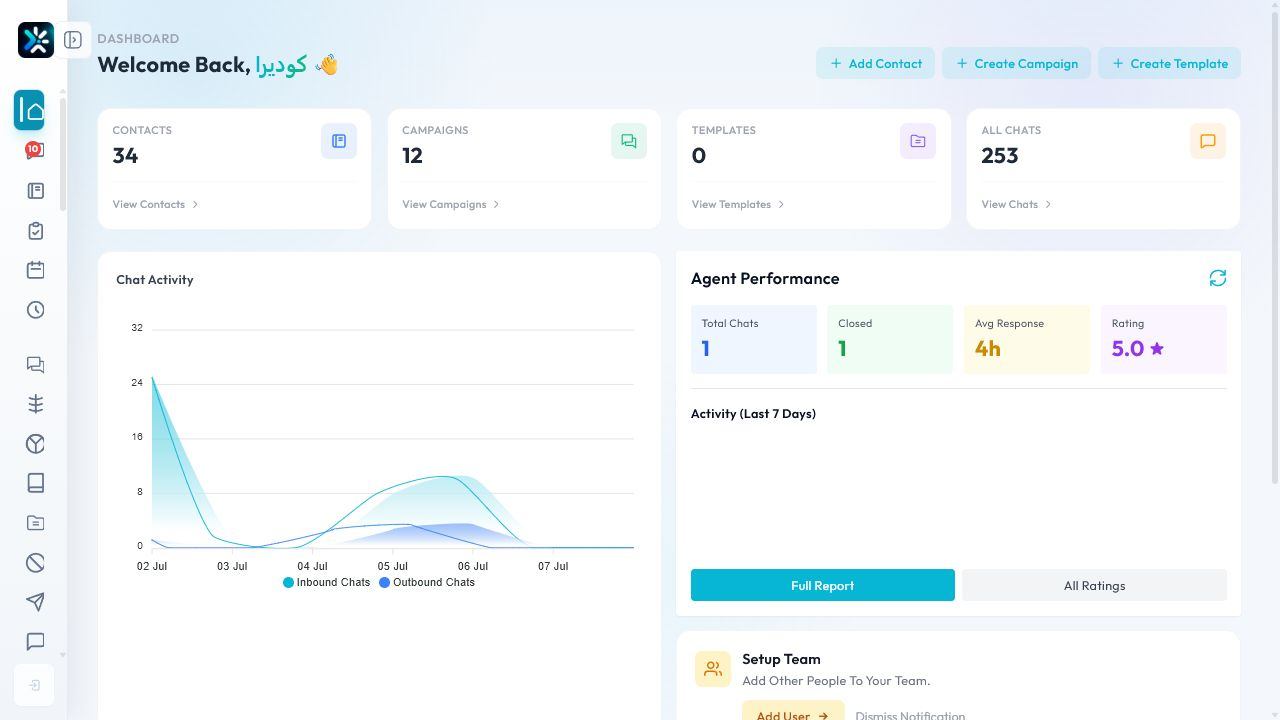
- Confirm the organization name in the app header.
- Refresh once if the dashboard still shows data from a previous organization.
Access checks
- Admin users should see settings, billing, team, and channel management.
- Agents should see inbox and assigned conversations.
- If a user sees empty data, first check organization selection before changing permissions.
Support note
For onboarding sessions, ask every trainee to say the active organization name out loud before they edit settings. It prevents most setup mistakes.
Detailed Operating Playbook
Primary owner: Every user, with admin support for access issues.
Team workflow
- Sign in using the approved company email.
- Check the organization name in the header before editing data.
- Use the organization switcher when a user belongs to more than one workspace.
- Ask an admin to review permissions if expected screens are missing.
Success signals
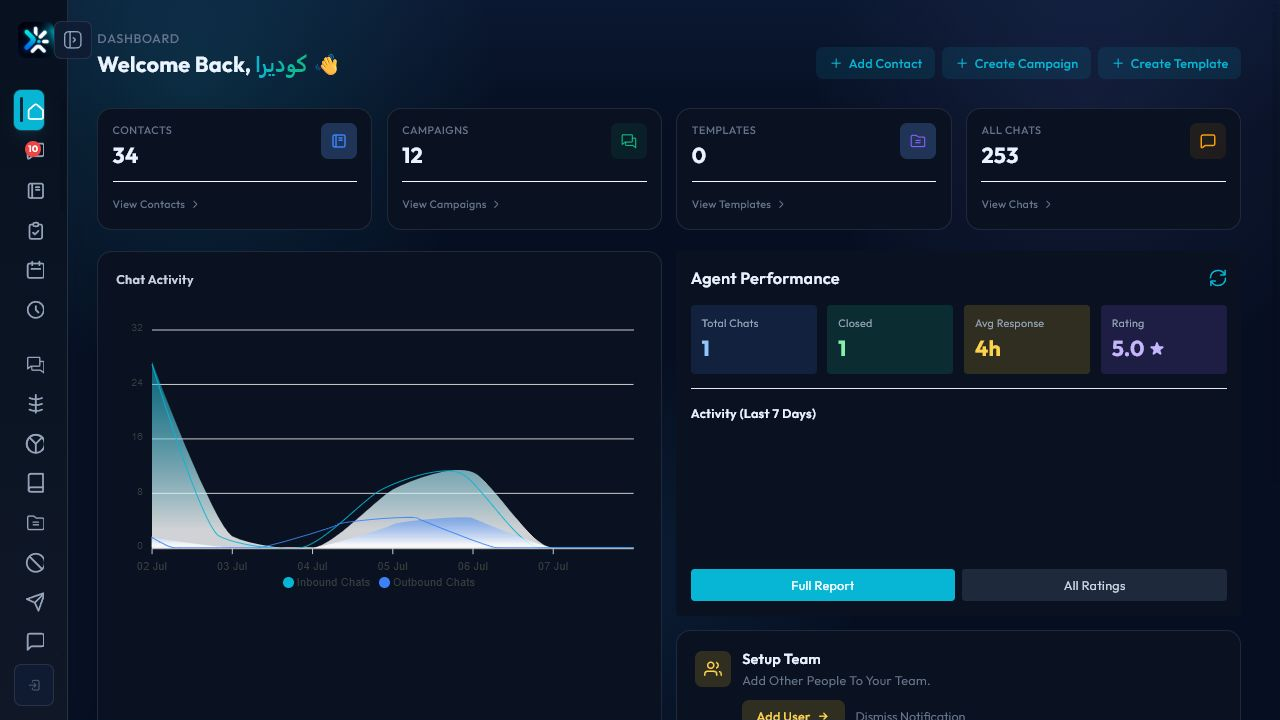
- The greeting or header reflects CodeEra.
- The sidebar shows the expected modules.
- No user edits settings while inside the wrong organization.
When to review or escalate
Review this workflow when channels, policies, or workload change. Escalate to a manager when numbers look inconsistent or the same issue repeats more than once in the same day.