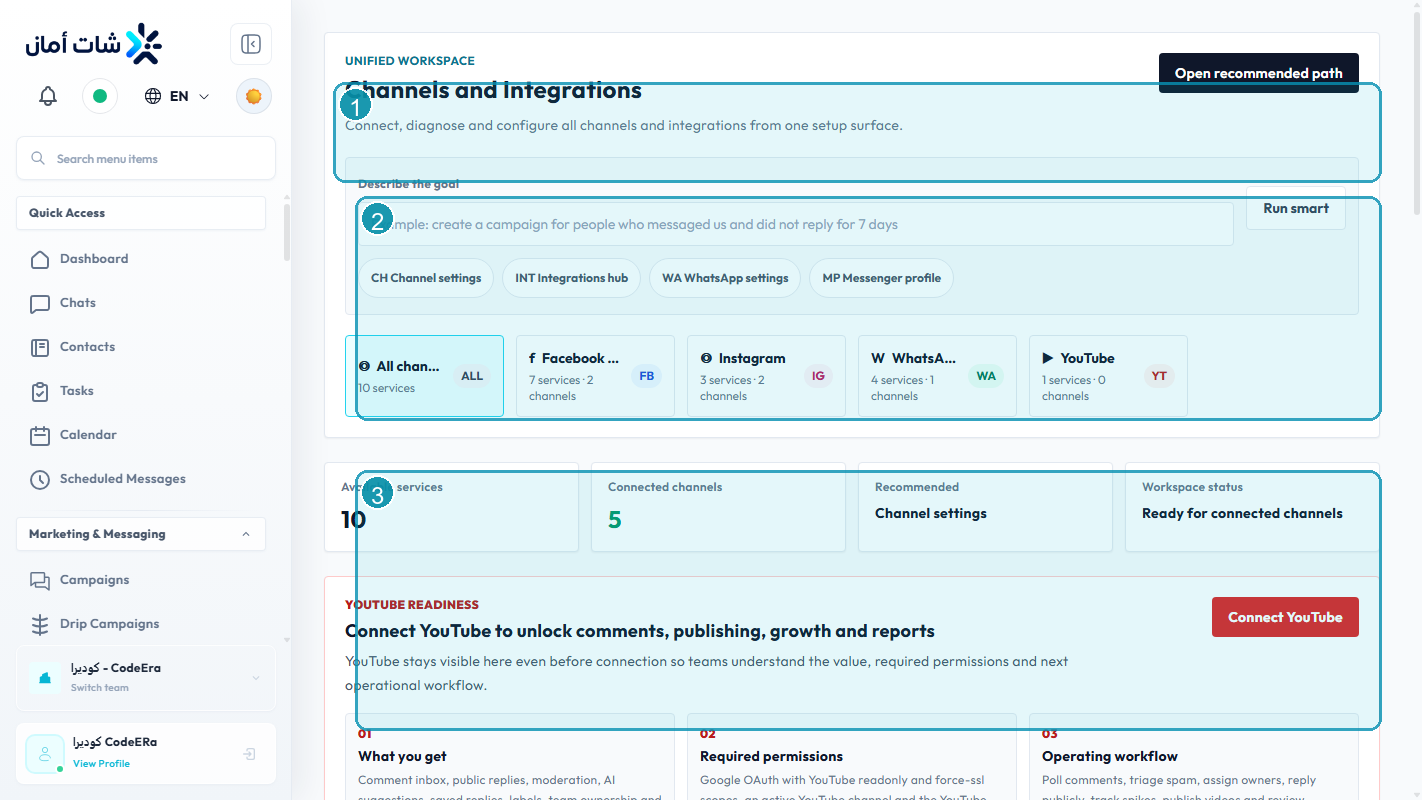
Recommended connection order
- Confirm the Facebook account has admin access to the Page.
- Confirm the Instagram account is connected to that Page.
- Start the Chataman connection flow.
- Select only the assets you want Chataman to manage.
- Review permissions before approving.
After connection
- Check the connected status in Channels.
- Send a direct message to the Instagram account.
- Confirm the message arrives in Chataman.
- Reply from Chataman and verify the external app receives it.
Troubleshooting
If a page or Instagram account is missing, fix ownership and Meta Business permissions first, then reconnect.
Detailed Operating Playbook
Primary owner: Social channel admin with Meta Business access.
Team workflow
- Confirm the Facebook Page and Instagram account are linked in Meta.
- Connect from Chataman channel settings, not from an old external guide.
- Select only the assets CodeEra should manage.
- Test a DM and a reply from the unified inbox.
Success signals
- Messenger or Instagram cards show connected status.
- DMs appear in Chataman without manual refresh.
- Agents can identify the channel source in the inbox.
When to review or escalate
Review this workflow when channels, policies, or workload change. Escalate to a manager when numbers look inconsistent or the same issue repeats more than once in the same day.