What this integration provides
The ChatAman add-ons bring a multi-agent Team Inbox, conversations, messages, contacts, webhook operations, durable campaigns, CRM opportunities, quotations, and invoices into Odoo. The current signed release is 1.17.0, and it supports Odoo 16, 17, and 18 on both Community and Enterprise editions. Release 1.4.2 made Automatic stable updates the default for new self-hosted connections. Release 1.5.0 introduced the collaborative Team Inbox; 1.6.0 added audited agent/department transfer, live availability and collision protection, reply/forward/reactions, ChatAman routing visibility, Odoo follow-up activities, CRM linking, quotations, snooze, and quick actions. Release 1.7.0 adds licensed installation binding, signed API requests, one Production plus one Staging slot, a 72-hour offline grace period, and protected downloads. Release 1.7.1 fixes canonical query ordering for signed GET requests. Release 1.8.0 adds inbox readiness diagnostics, older-message pagination, delivery retry with stable idempotency, unread and snoozed filters, custom snooze, ChatAman-sourced quick replies, per-conversation drafts, and a non-blocking typing-collision confirmation. Release 1.8.1 fixes unread-message date comparisons. Release 1.9.0 adds server-side Forward search, Tomorrow/Next week snooze, media-expiry warnings, Odoo Bus realtime updates with fallback, optional browser alerts, SLA/workload cards, cross-device drafts, bulk actions, content-free quick-reply analytics, and permission-controlled personal quick replies. Release 1.10.0 adds a normalized bulk idempotency layer with an authoritative Idempotency-Key header, retry-safe quick-reply telemetry dedup with organization opt-out, 30-day drafts with a 24-hour recovery grace, and a compact mobile Team Inbox usable at 320 px. Release 1.11.0 suppresses no-op SLA policy events, records an auditable before/after policy trail, monitors the policy-event DLQ with safe single-event replay, makes repeated Odoo deliveries idempotent, and centralizes the Team Inbox More Actions condition. Administrators can change the update policy afterward without a later release resetting it. Odoo.sh stays on Notify only because code deployment must use its connected Git branch.
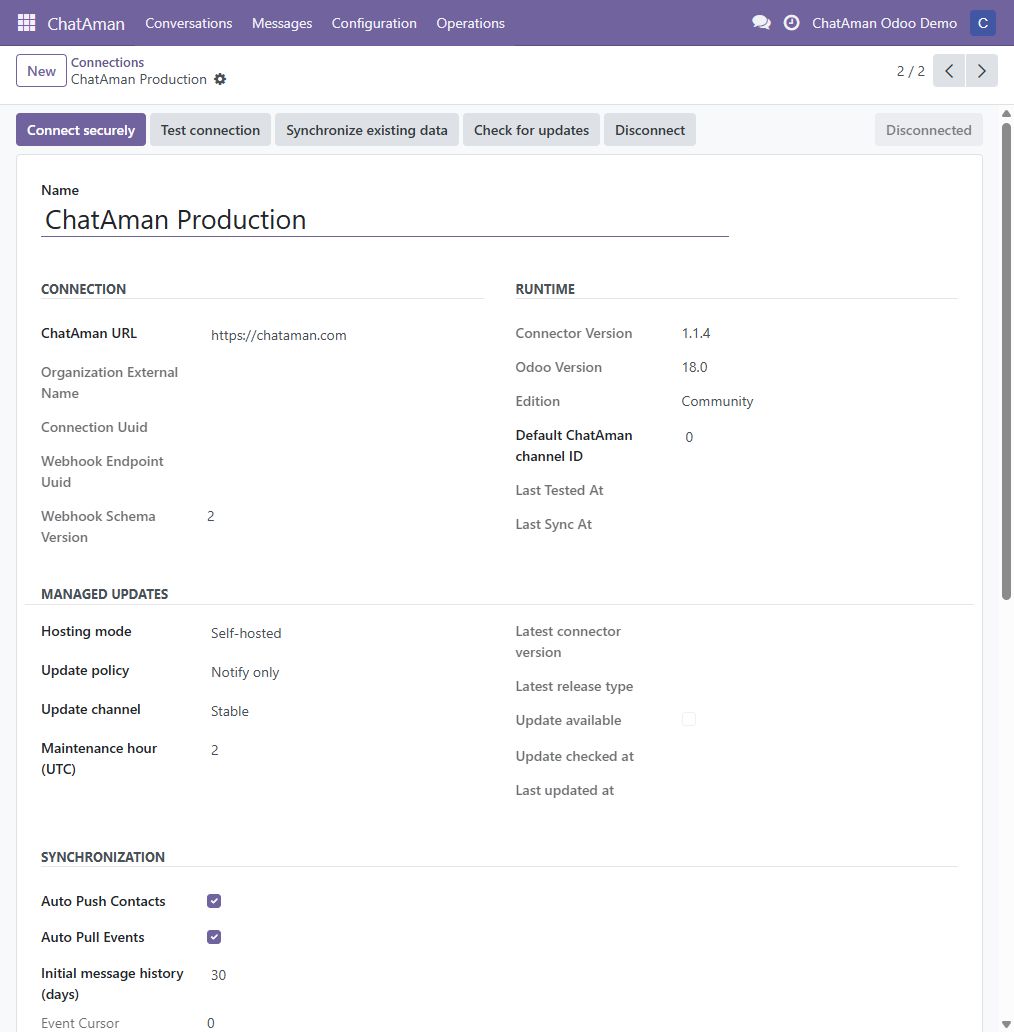
The production connector must use this address exactly:
https://chataman.com
Do not use dev.chataman.com for a customer production database.
Before you begin
You need:
- Odoo administrator access and SSH access to the Odoo server for self-hosted installations.
- A public HTTPS address for Odoo that ChatAman can reach.
- A database backup before installing or upgrading modules.
- A ChatAman organization owner or administrator available to approve the secure pairing.
- An active ChatAman subscription or trial. It authorizes the first signed download and each six-hour license renewal.
- The package matching your Odoo major version. Never install a 16 package on 17 or 18.
1. Install the add-ons for the first time
Sign in to ChatAman, open Settings → Integrations Hub → Odoo, and download the package matching Odoo 16, 17, or 18. ZIP downloads are licensed and use a signed link that expires after 15 minutes; the public release catalog exposes integrity metadata but never a reusable package URL.
Then:
-
Install the Python packages listed in the downloaded
requirements.txtinside the same Python environment used by Odoo. -
Extract these five directories into a dedicated directory already included in Odoo’s
addons_path:chataman_connector,chataman_crm,chataman_sale,chataman_account, andchataman_stock. -
Generate a dedicated encryption key on the Odoo server:
openssl rand -hex 48Add the generated value under
[options]in the configuration file used by the running Odoo service, then keep that file outside Git:chataman_encryption_key = REPLACE_WITH_A_LONG_RANDOM_SECRETReplace the placeholder with the generated value. Do not copy the example literally. Restart the actual Odoo service after saving the file.
-
Enable developer mode, open Apps, and choose Update Apps List.
-
Install ChatAman Connector first. Install ChatAman CRM, Sales, or Accounting only when the corresponding Odoo application is installed.
-
Give operators ChatAman User access and configuration owners ChatAman Manager access.
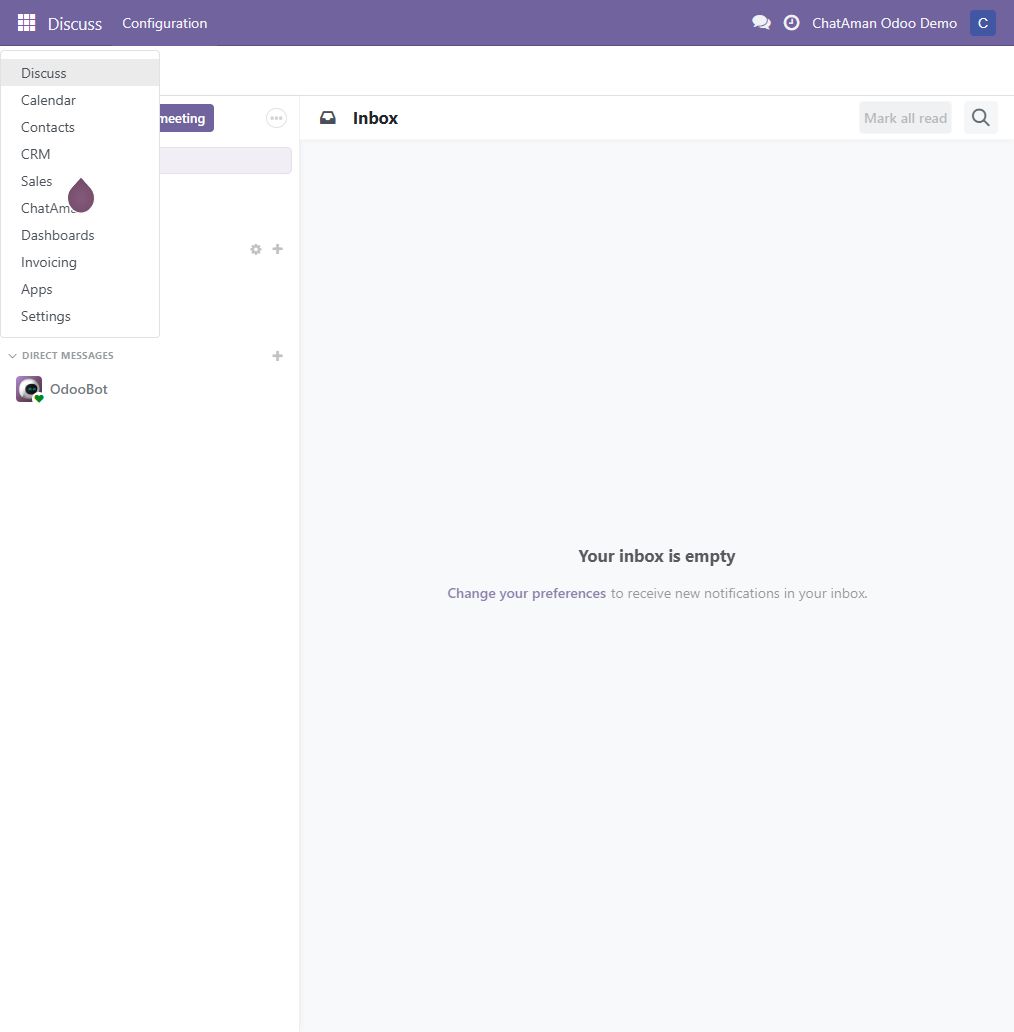
If the app is not visible, remove the default Apps filter, search for chataman, update the Apps List again, and confirm the parent directory—not an extra nested ZIP directory—is in addons_path.
2. Create the production connection
The quickest path in connector 1.2.7 and later is ChatAman → Configuration → Setup Assistant:
- Keep ChatAman URL set to
https://chataman.com. - Select the Odoo company, choose Production or Staging / Testing, and choose how many days of message history to import. Thirty days is a safe starting point.
- Keep contact synchronization and event reception enabled unless your data policy requires a narrower scope.
- Click Connect securely. The assistant creates the connection and opens the ChatAman approval flow.
You can still open Configuration → Connections for release policy, maintenance window, advanced synchronization settings, or a second company connection. New self-hosted connections default to Automatic stable updates; Odoo.sh remains Notify only.
3. Pair Odoo securely with ChatAman
- Click Connect securely in Odoo.
- If requested, sign in to ChatAman using an organization owner or administrator account.
- Select the correct customer organization. ChatAman returns automatically to the pending Odoo approval page.
- Confirm the Odoo hostname, Odoo version, edition, connector version, and ChatAman organization.
- Select the authorization checkbox, then click Approve secure connection. ChatAman returns automatically to Odoo and the status becomes Connected.
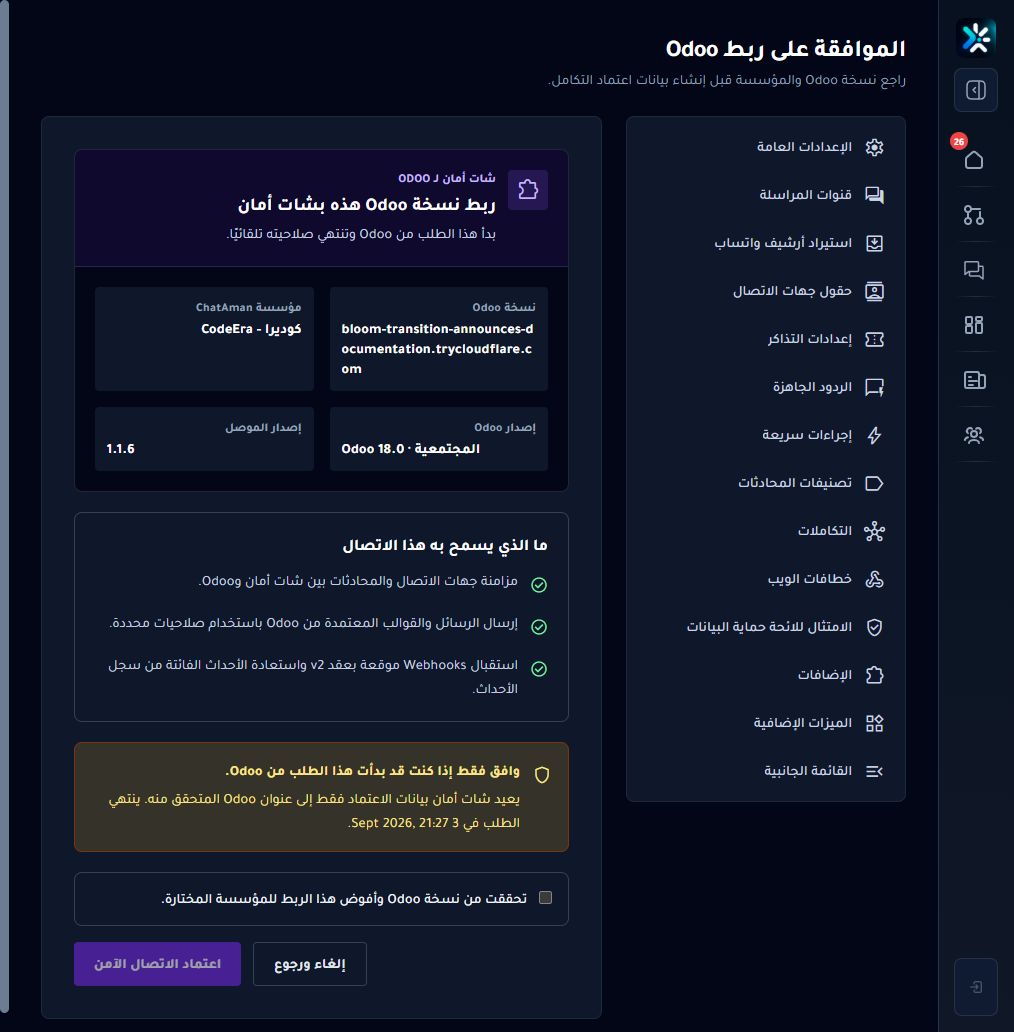
The pairing creates a scoped API key, webhook secret, and installation signing secret automatically. The installation is bound to the Odoo database fingerprint and public origin. Never send any secret by email or chat, and never paste it into support tickets. Pairing approval expires if it is not completed promptly; simply start a new pairing when that happens.
Each organization has one Production slot and one additional Staging / Testing slot. Manage them from Settings → Integrations Hub → Odoo. Transfer license revokes the old connection and frees its slot for the next approved pairing; Revoke retires it. Odoo validates the license every six hours. If ChatAman is temporarily unreachable, the connector continues for up to 72 hours, warns the administrator, and then becomes read-only without disabling Odoo CRM, Sales, or Accounting. Existing 1.6.x connections receive a 30-day activation migration window so the server update does not interrupt their current API traffic.
Choosing Cancel and return does not create credentials. It returns to Odoo in a clean Disconnected state so a new request can be started safely.
4. Test and synchronize
After the status becomes Connected:
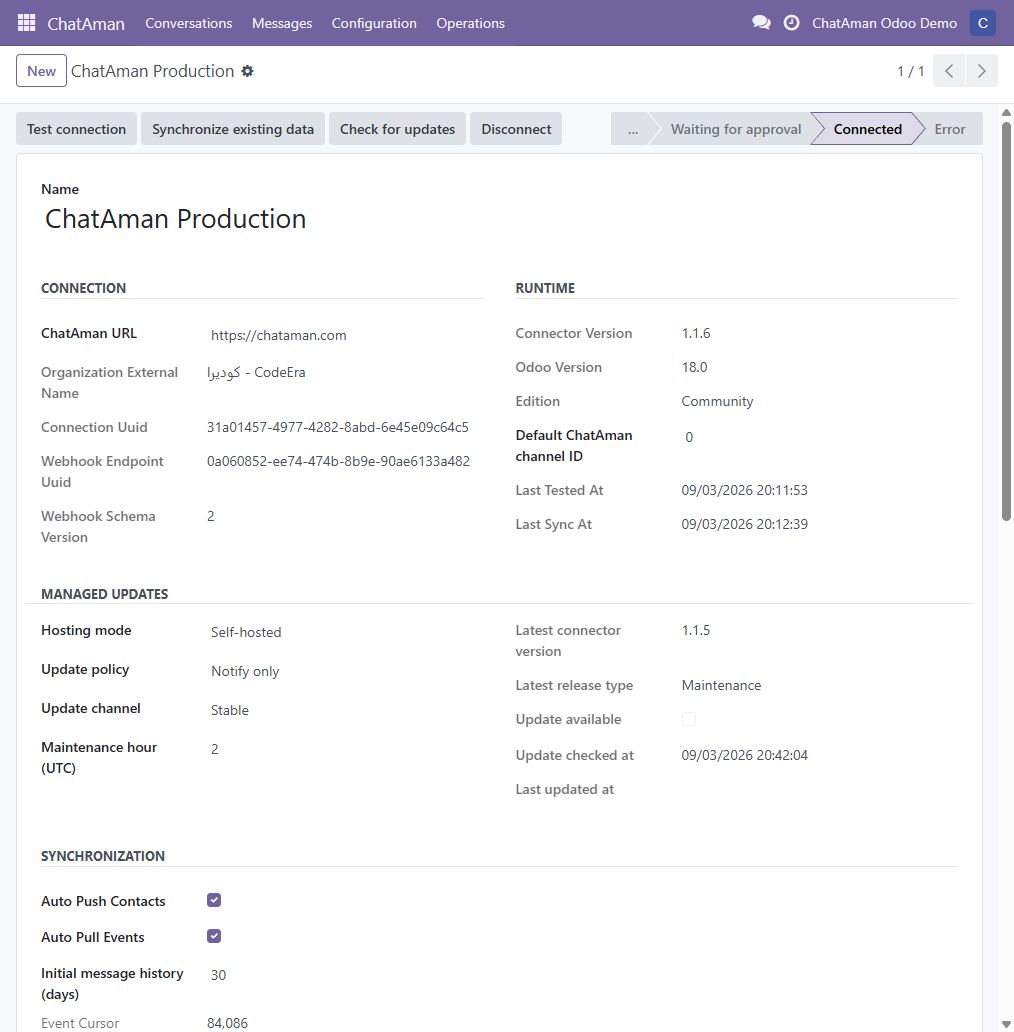
- Click Test connection and confirm the successful result.
- Click Refresh channels and templates to load active channels, approved templates, and ChatAman users.
- Click Synchronize existing data once to queue the initial contacts, conversations, and configured message history.
- Open ChatAman → Operations → Synchronization Jobs and confirm jobs are completing.
- Send one controlled message and receive one reply before inviting the full team.
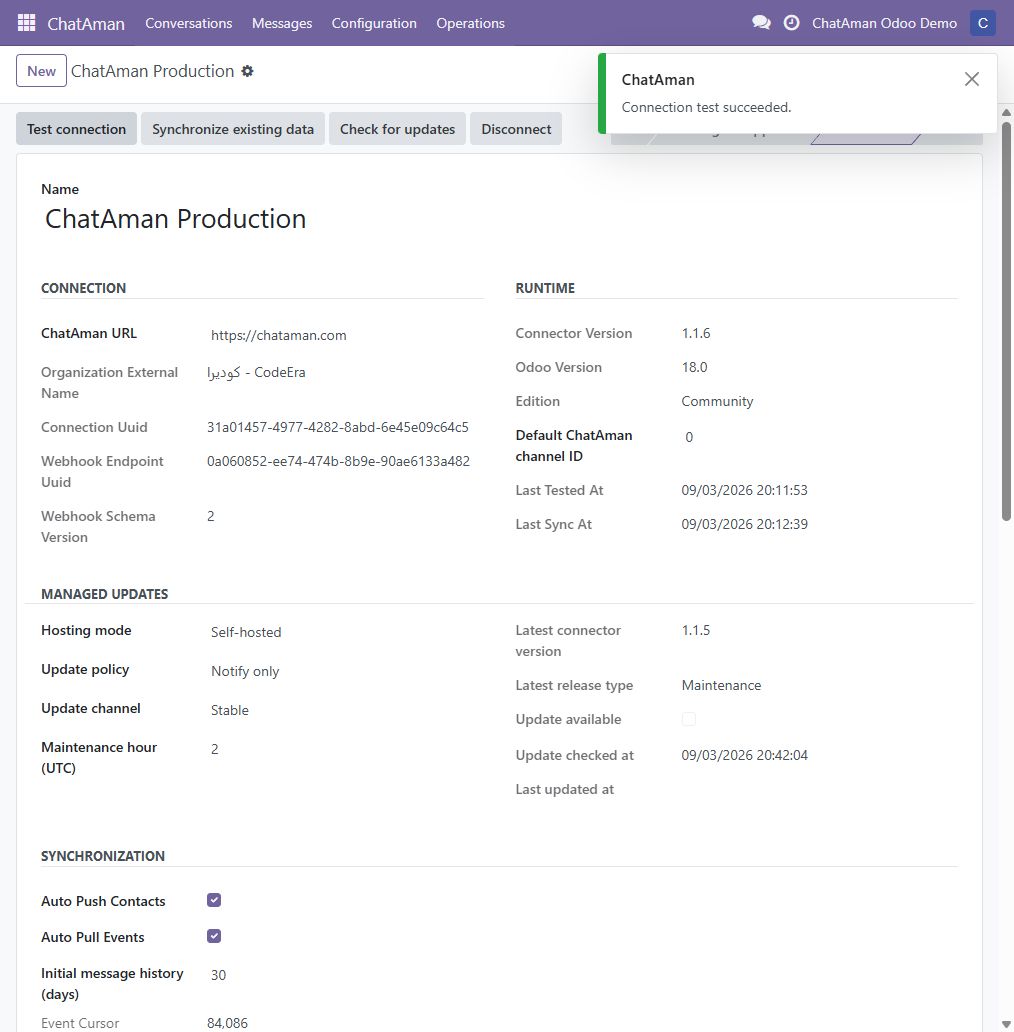
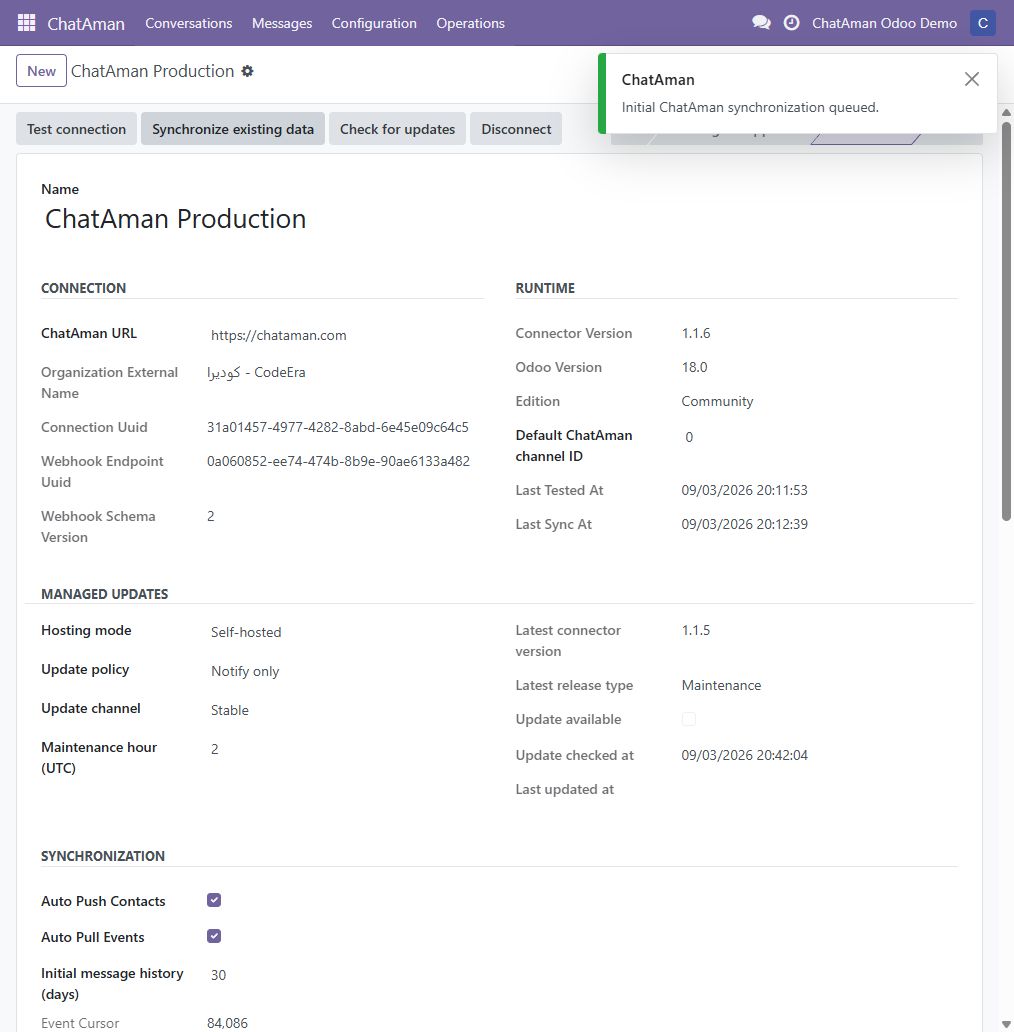
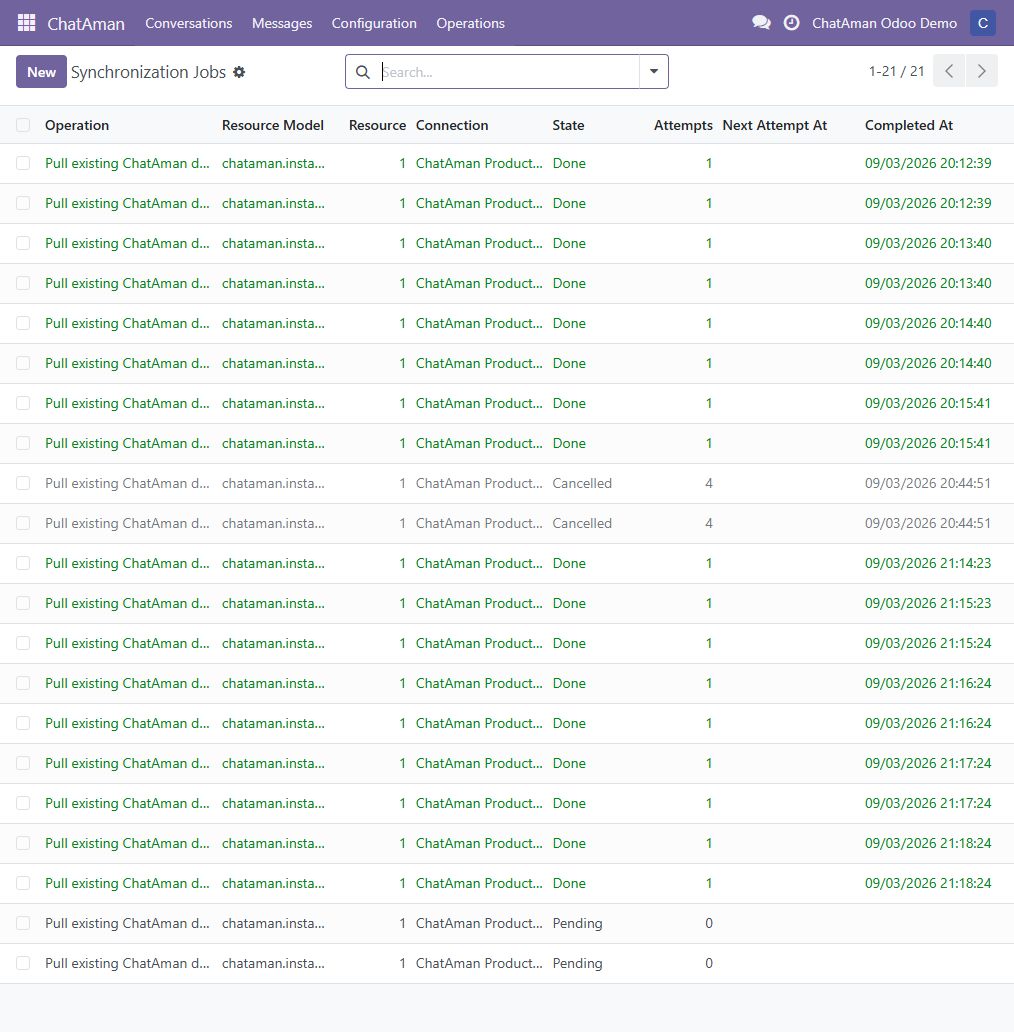
Connection-page buttons
| Button | When to use it | Expected result |
|---|---|---|
| Connect securely | The record is disconnected | Opens the signed ChatAman approval flow. |
| Test connection | After pairing | Confirms the production API key and organization are valid. |
| Refresh license | After pairing or when a license warning appears | Refreshes the six-hour lease and confirms the database and public origin binding. |
| Refresh channels and templates | After pairing and whenever ChatAman catalogs change | Refreshes channels, approved templates, and the user-mapping list. |
| Synchronize existing data | Once after first pairing, or for a controlled resync | Queues background work; it does not block the browser. |
| Check for updates | At any time | Reads the signed stable release manifest for this Odoo major version. |
| Schedule verified update | Only when an eligible update is available | Schedules a signed package for the configured maintenance window. |
| Disconnect | When retiring or replacing the integration | Revokes the API key and webhook, clears local credentials, and cancels unfinished synchronization jobs. |
5. Use the dashboard
Open ChatAman → Dashboard first. The eight cards show open and total conversations, today’s messages, synchronized contacts, active campaigns, campaigns needing attention, pending operations, and failed operations. Every card opens the exact underlying records. Synchronization health shows the successful-operation percentage, last activity, connected organization, and default sending channel.
Use Message volume, Synchronization outcomes, and Webhook delivery to open native Odoo Graph/Pivot views. The chart values remain available in the underlying list, so managers can audit every number.
If Failed operations is greater than zero, open the card, correct the first actionable cause, and use Retry failed operations. Do not repeatedly retry a configuration or permission failure without correcting it.
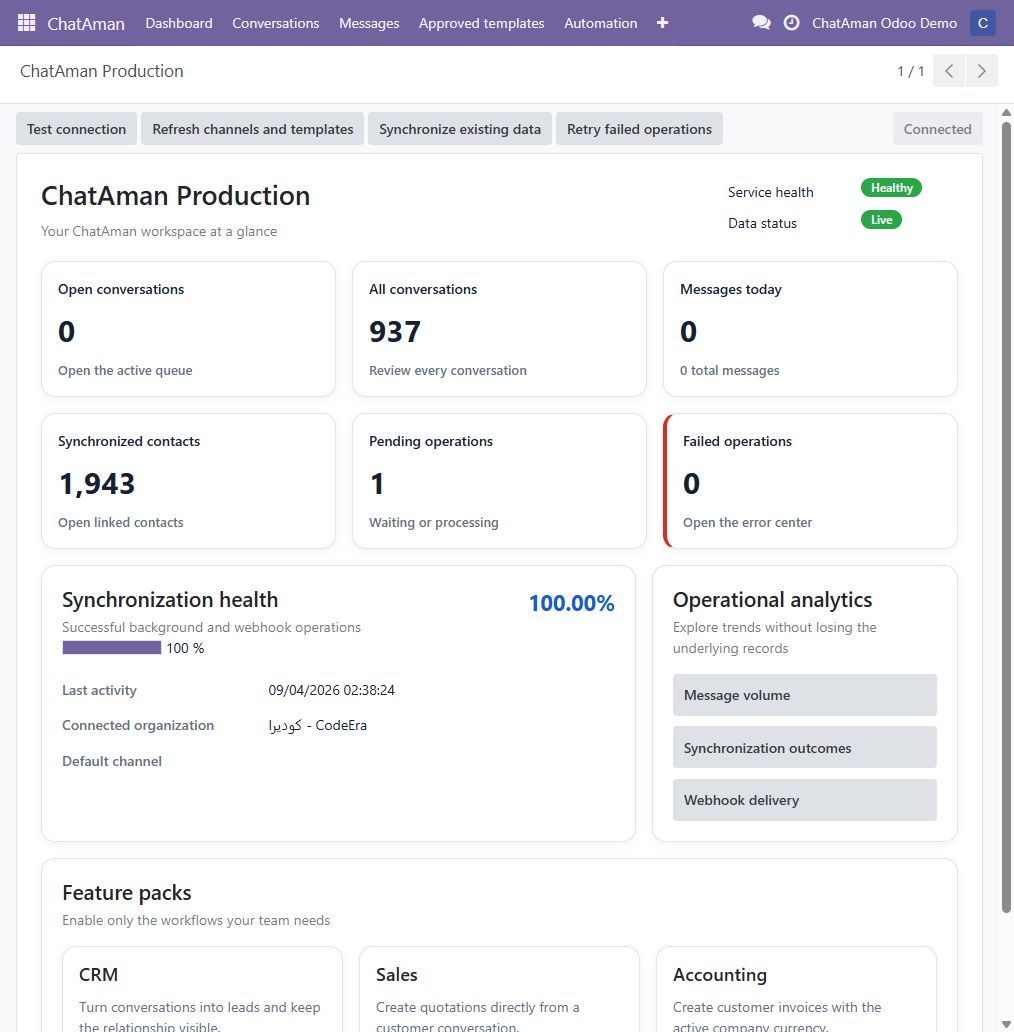
6. Work together in Team Inbox
Open ChatAman → Team Inbox. Release 1.6.0 gives multiple Odoo agents and ChatAman agents one coordinated operational chat screen. The three panels show the filtered queue, the live customer thread, and customer/workflow details. On mobile, each panel becomes a focused full-screen step with clear Back and Details controls.
The Team Inbox lets agents:
- Search and filter All, Mine, Unassigned, Unread, or Snoozed conversations, and filter by active or final status. A readiness banner explains connection, license, mapping, or channel problems before work starts.
- See Odoo and ChatAman teammates viewing or typing in the same conversation. Odoo shows a non-blocking confirmation before sending while another agent is typing.
- Use Assign to me or Transfer to select a ChatAman agent or department and record a mandatory reason. The Operations tab shows the audited assignment and transfer history.
- Review ChatAman’s current automatic-assignment mode, strategy, capacity limits, working-hours state, departments, and agent availability (Online, Busy, Offline, or Outside working hours) as read-only operational context.
- Change Open, Pending, In Progress, Resolved, or Closed status and priority. Use Snooze with a custom date or clear it from the details panel, in addition to the one-hour quick action.
- Send text, approved templates, and image, audio, video, or document media up to 25 MB. The optional caption is sent with the file.
- Reply to a specific message, forward a supported message to another conversation on the same connection, and send emoji reactions through the original channel where supported.
- Review outbound Queued, Sent, Delivered, Read, or Failed state, retry a failed message safely, load older messages without losing scroll position, and mark a thread unread for personal follow-up. Unsent text is kept per conversation when switching threads, and failed sends restore the draft, reply target, and caption context.
- Set a Follow-up date to create or update a real Odoo Activity assigned to the conversation owner; overdue follow-ups are highlighted in the queue.
- Create or link a CRM Lead from the customer panel when ChatAman CRM is installed, and create a quotation directly when ChatAman Sales is installed.
- Keep internal notes visible only to Odoo agents. Notes are not sent to the customer or ChatAman channel.
- Fetch an AI summary and suggested reply when AI is configured for the organization. The agent must review the suggestion before using and sending it.
- Pick a ChatAman quick reply by search or shortcut and insert it as editable text. Nothing is sent automatically; quick replies stay managed in ChatAman.
- Search all eligible conversations inside Forward; results come from ChatAman and are restricted to the same organization, channel, and authorized membership.
- Snooze until Tomorrow, Next week, or a custom time. ChatAman resolves presets using the organization’s timezone and working hours.
- See a clear empty-state link to the ChatAman quick-reply manager, plus warnings and a safe refresh action before short-lived media links expire.
- Enable optional browser notifications, choose the default sound or silent mode, and open the exact conversation from the notification.
- Review first-response and resolution SLA timers plus compact workload cards sourced from ChatAman, separately from Odoo Activities.
- Keep versioned drafts across browsers and devices. A conflict shows the server copy and lets the agent choose which version to keep.
- Select up to 50 conversations for bulk Assign, Resolve, or Snooze, with confirmation, per-item results, stable idempotency, and retry of retryable failures only.
- Use organization or Personal quick replies. Personal reply bodies stay only in ChatAman, are visible to their owner, and remain subject to organization policy and manager compliance controls.
Webhook changes are published through Odoo Bus/WebSocket for immediate refresh. If Bus is unavailable, the inbox falls back automatically to safe polling and keeps a 60-second reconciliation heartbeat. ChatAman remains the source of truth for routing, availability, channel delivery, transfer, snooze, reply, forward, reactions, SLA, and quick replies; Odoo remains the source of truth for CRM records, quotations, internal notes, and Activities. Durable synchronization keeps both sides reconciled, so closing the browser does not lose incoming work. Use Operations → Conversation Records or Messages when a manager needs the underlying auditable Odoo records.
Quick actions
The action strip above the thread exposes the daily workflow without opening technical records: Assign to me, Transfer, Resolve, Snooze 1 hour, Create/Open Lead, and Create Quotation. Buttons for optional business packs appear only when the corresponding Odoo application and ChatAman add-on are installed.
Transfer safely
- Open the conversation and click Transfer.
- Choose Agent or Department. The agent list includes live availability from ChatAman.
- Choose the destination, enter the required operational reason, and click Transfer now.
- Open Details → Operations to verify the current routing rules and the new audited history entry.
Follow up from Odoo
Open Details → Contact, choose a Follow-up date, and click Schedule activity. Odoo creates a To Do Activity for the assigned Odoo owner, or the current user when there is no owner. Clearing the date removes the connector-created Activity.
To send an approved template:
- Open a conversation linked to a synchronized contact.
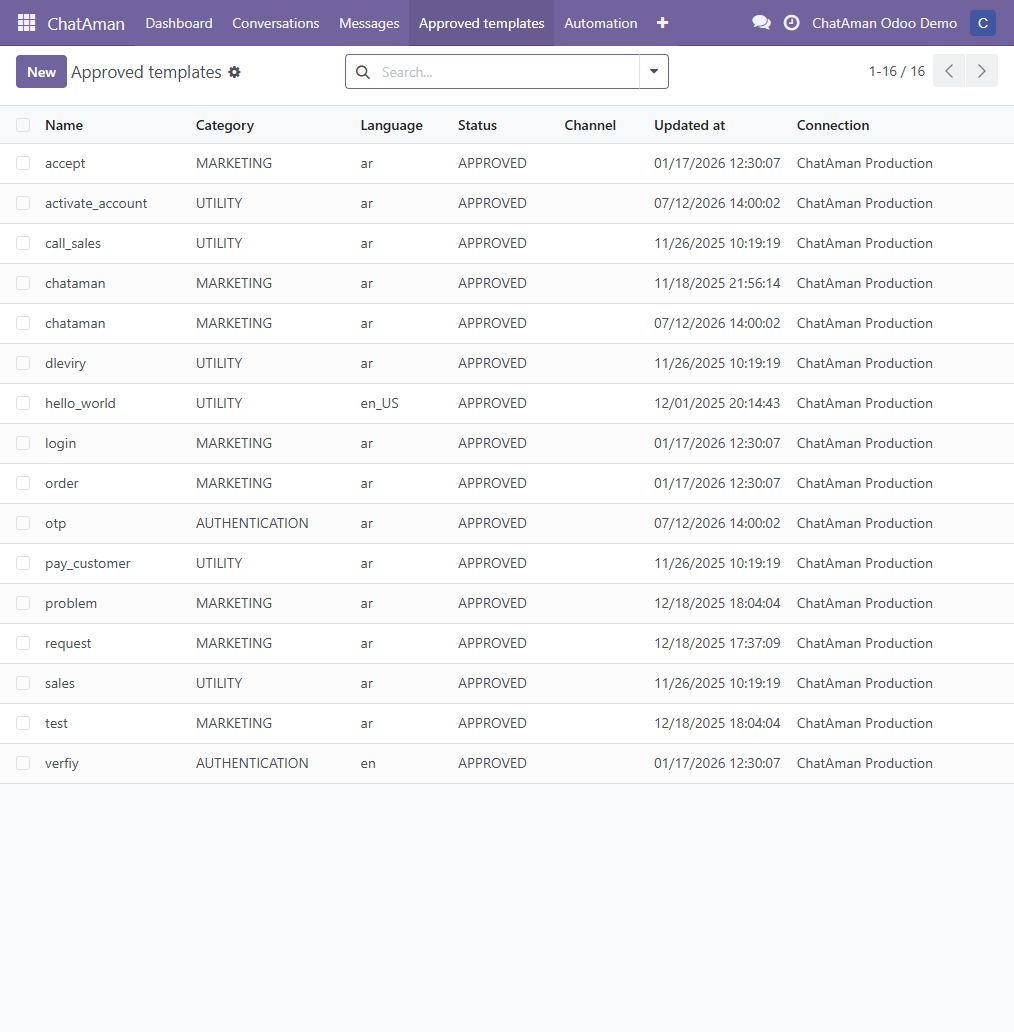
- Open the Approved template tab and select a template from the synchronized library.
- Review the preview. If the template has placeholders, enter one value per line in placeholder order.
- Click Send template. The template’s own channel is preferred; otherwise Odoo uses the connection’s default channel.
The Channels page is read-only operational context. Set the default channel on the connection. Use User mapping to connect each ChatAman team member to the corresponding Odoo user; only mapped agents can be assigned from Team Inbox. Refresh channels and templates after team membership changes.

7. Run an auditable campaign
Only a ChatAman Manager can open Campaigns. Create a draft, select the connection, an optional contact tag, a sendable channel, and either text or an approved template. Each campaign is limited to 200 synchronized contacts. Record the consent source and a form, contract, ticket, or audit reference, then confirm that every recipient opted in.
Leave Scheduled start empty to queue immediately, or choose a future time. Use an approved template whenever the channel requires one outside its customer-service window. Enter one template value per line. The safe placeholders {{name}}, {{phone}}, {{email}}, and {{company}} are rendered separately for every recipient; unsupported placeholders are rejected instead of evaluated.
After queueing, the campaign becomes a durable record. You can pause or resume unsent recipients, cancel all remaining recipients, retry terminal failures, or duplicate the campaign as a new draft. The cards show recipients, queued, sent, delivered, read, and failed. Accepted and delivery rates stay visible without hover, while Open recipient analytics provides native Odoo Graph/Pivot views and the underlying auditable rows. Delivery and read states depend on provider receipts received through ChatAman webhooks.
8. Enable business feature packs
The connector is the visible product; CRM, Sales, and Accounting are feature packs. From the dashboard, an Odoo administrator can enable any pack present in the add-ons path.
- CRM: create a lead from a conversation, optionally create or reuse one open lead for inbound messages from the same contact, record stage changes in the Odoo conversation log, and optionally close ChatAman when a linked lead is won or archived. ChatAman does not yet store the Odoo CRM stage as a separate remote field.
- Sales: create quotations, send the latest quotation PDF, send order and delivery updates, check storable-product availability on Odoo 16–18, and optionally queue a customer notification when an order is confirmed.
- Accounting: create customer invoices, send invoice PDFs or payment details, send a payment reminder manually, optionally queue overdue reminders at a controlled interval, and optionally thank the customer when an invoice becomes paid. Amounts always use the invoice/company currency configured in Odoo.
Automatic order and payment messages are off by default. Enable them only after completing a controlled test with the customer’s approved operating policy.
9. Build optional automations
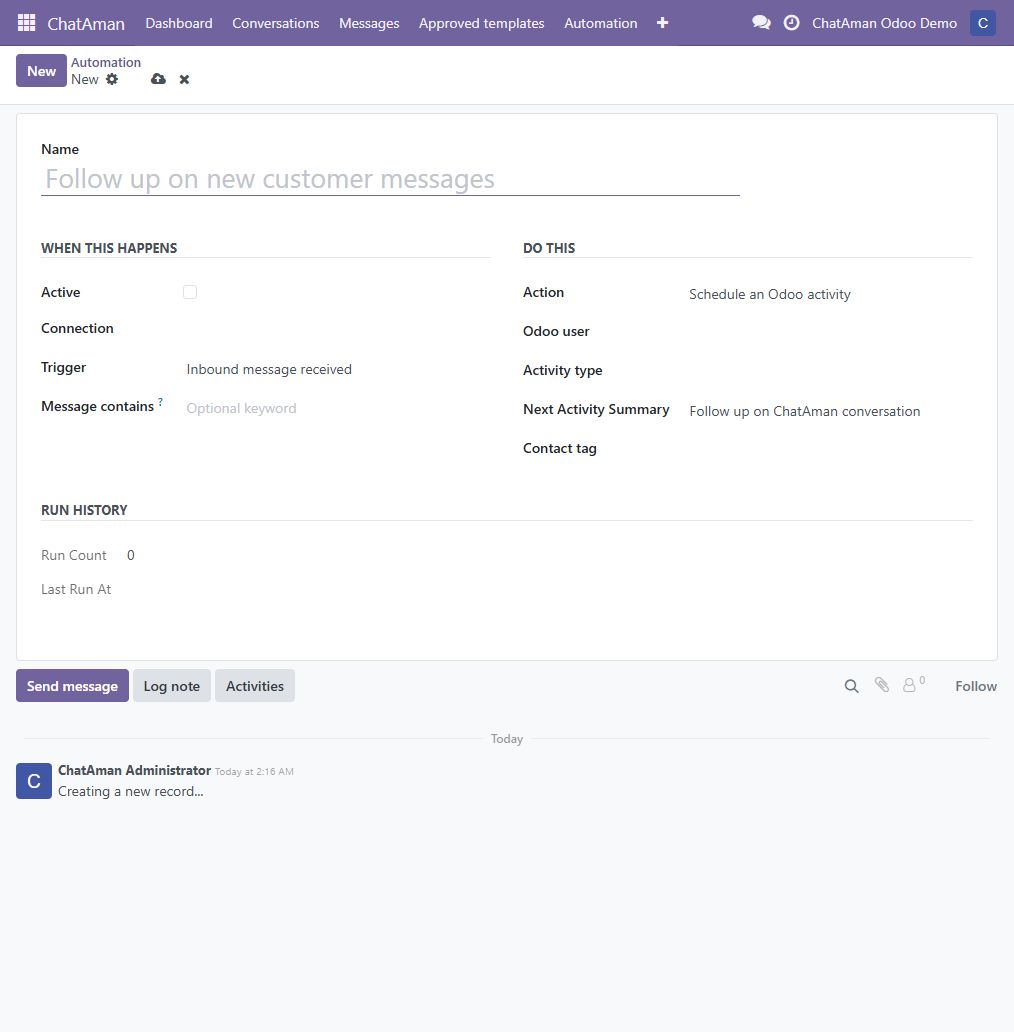
Open ChatAman → Automation and create an inactive rule first. Choose a trigger—an inbound message, new conversation, closed conversation, urgent conversation, or contact update—then choose one action: schedule an Odoo activity, assign an Odoo owner, or add a contact tag. Configure the required user, activity type, or tag, save, test with controlled data, then activate the rule.
Each rule shows run count, last run, and last error. A failed optional rule is isolated so it does not stop webhook ingestion.
10. Monitor webhooks and synchronization
Open ChatAman → Operations to inspect the Webhook Inbox, synchronization jobs, managed updates, and connection logs.
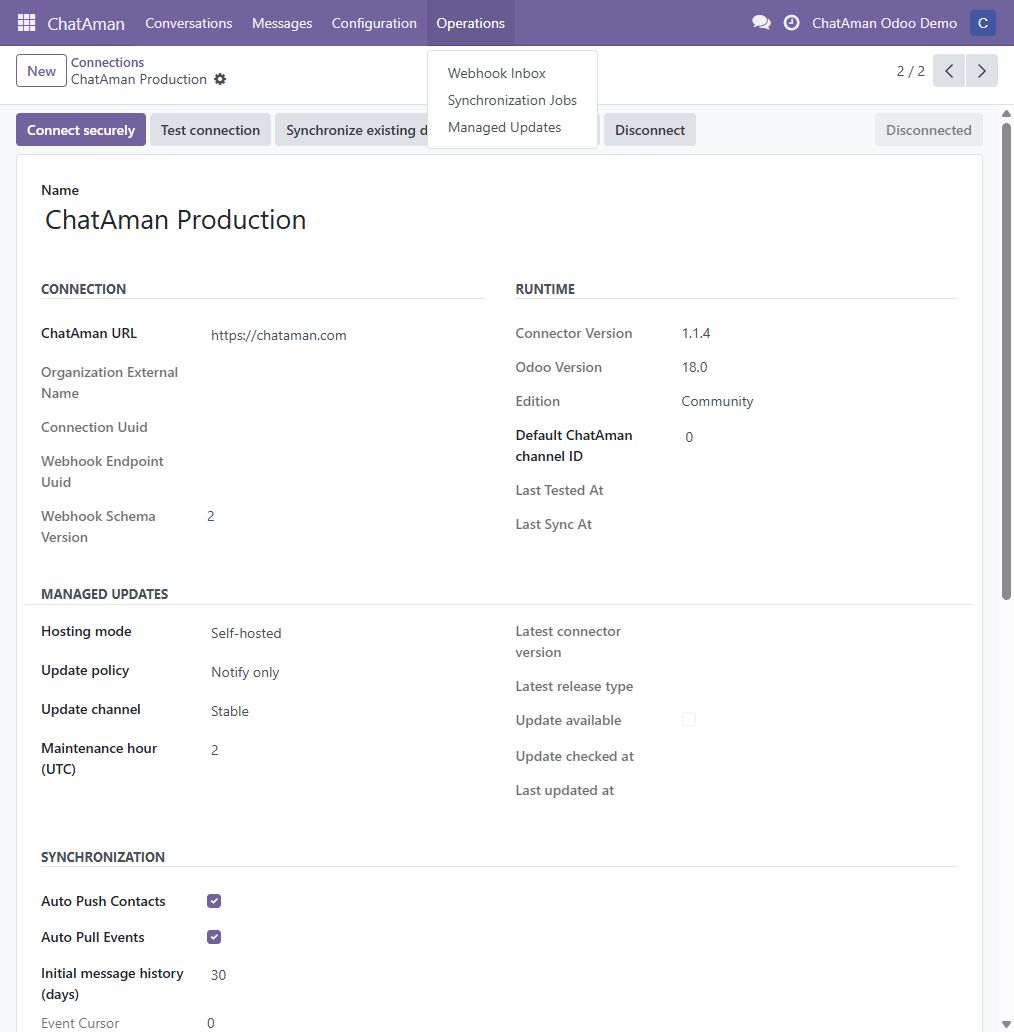
The Webhook Inbox stores signed incoming events durably, prevents duplicate processing, and retries recoverable failures. Pending is normal until the next Odoo cron run; Processed confirms completion. Repeated Failed events usually indicate a permissions, network, or data-validation issue that should be corrected before retrying.
11. Disconnect or start over safely
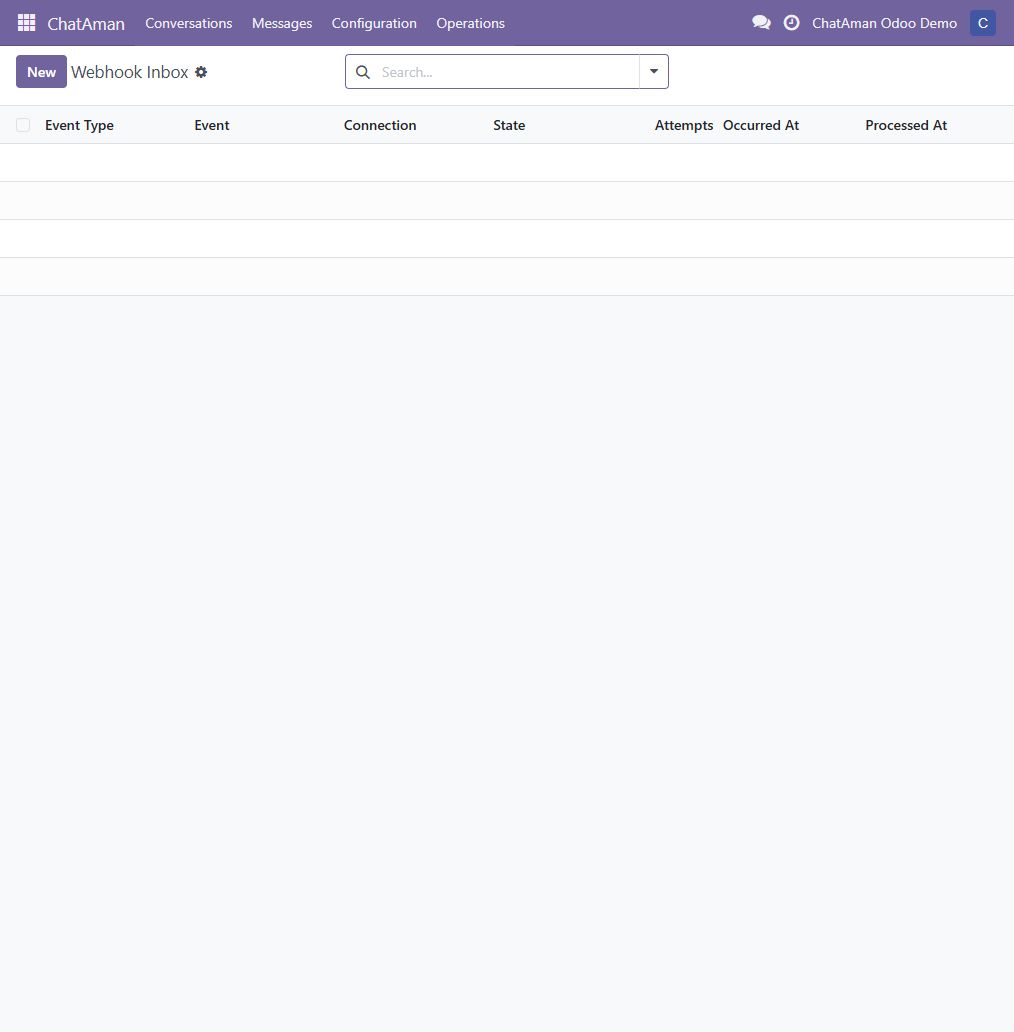
Click Disconnect, review the confirmation, and choose OK only when you intend to revoke the integration. Odoo asks ChatAman to revoke the API key and webhook, removes the encrypted local credentials, cancels unfinished jobs, and reloads the record as Disconnected. Use Connect securely to create a fresh pairing afterward.
12. Update an existing self-hosted installation
First open Settings → Integrations Hub → Odoo, copy the fresh download link for the matching Odoo version, then run this single command in an interactive SSH terminal. The command asks for that link in English and passes it without printing it again:
read -rsp "Paste the temporary ChatAman package URL: " CHATAMAN_PACKAGE_URL && echo && curl -fL https://chataman.com/installers/chataman-odoo-installer.py -o /tmp/chataman-odoo-installer.py && sudo python3 /tmp/chataman-odoo-installer.py --package-url "$CHATAMAN_PACKAGE_URL"
The English wizard detects the installed Odoo major version, asks for the systemd service and database, validates the signed release, shows a final summary, and requires typing UPDATE before changing anything. It creates database and add-on backups, upgrades the four modules, restarts Odoo, checks health, and retains the backup path. It expects the connector to be installed already and defaults to /usr/lib/python3/dist-packages/odoo/custom; use --addons-path when your installation is elsewhere.
Odoo.sh customers should update the Git revision or submodule used by their Odoo.sh project instead of running the self-hosted installer.
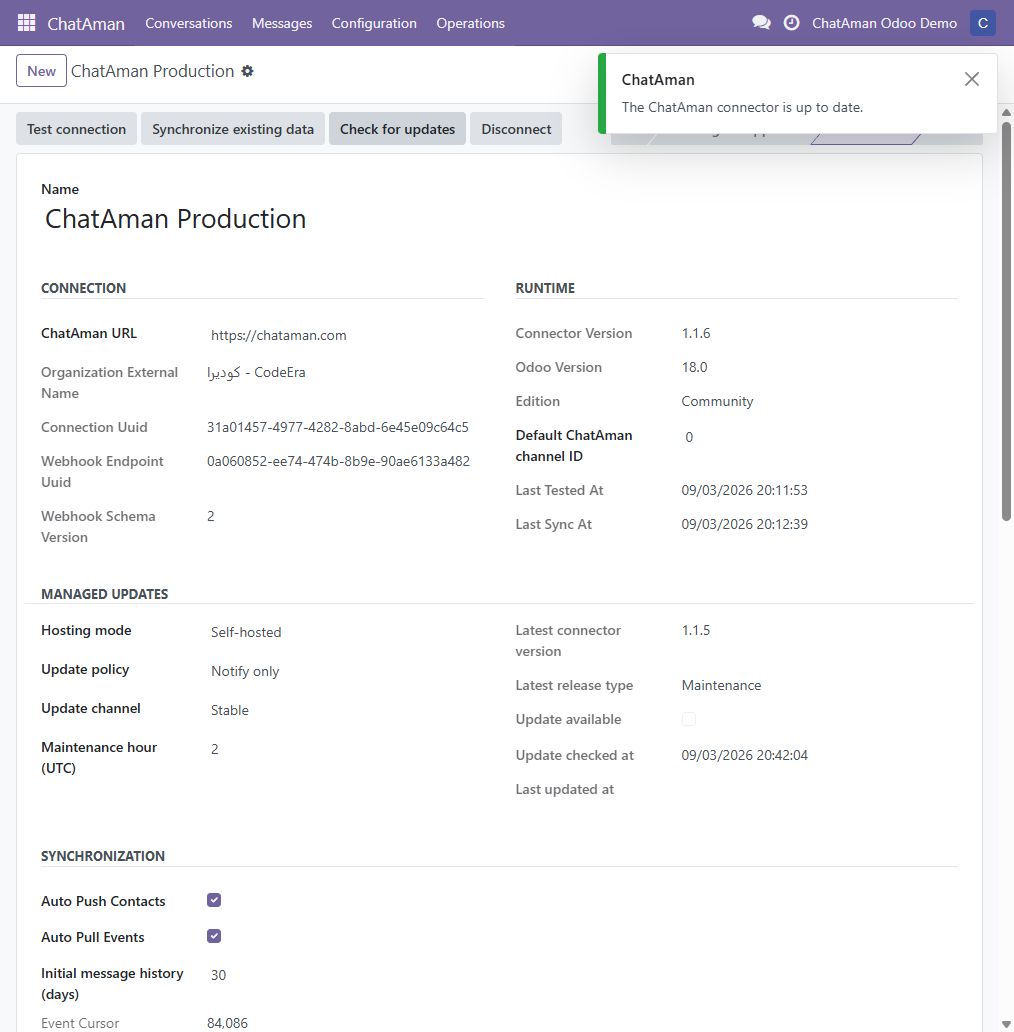
You can also check safely from the Odoo connection page by clicking Check for updates:
Troubleshooting
The ChatAman app is not visible
Confirm all four module directories are directly below an Odoo addons_path entry, restart the correct Odoo service, update the Apps List in developer mode, remove the default Apps filter, and search for chataman.
Upgrade fails while loading Arabic translations
Upgrade to the current signed release. Connector 1.1.4 and later includes scoped recovery for old malformed ChatAman Arabic catalogs without modifying Odoo core translations.
The connection stays disconnected
Confirm both systems use public HTTPS URLs, the Odoo base URL is correct, firewalls allow outbound and inbound HTTPS, the correct ChatAman organization approved the request, and the pairing did not expire.
Connect securely says chataman_encryption_key is missing
Generate a unique key with openssl rand -hex 48, add it under [options] in the configuration file used by the running Odoo service, restart that service, and try again. Keep the same key for the lifetime of that database; changing or losing it makes the stored credentials unreadable and requires pairing again.
Webhook or synchronization jobs do not move
Confirm Odoo cron workers are running. Then inspect Webhook Inbox, Synchronization Jobs, and Connection Logs for the first actionable error. Fix the cause before retrying a large batch.
Production checklist
- ChatAman URL is exactly
https://chataman.com. - Odoo uses a public HTTPS URL and database listing is disabled where appropriate.
- A dedicated
chataman_encryption_keyis configured and backed up securely. - Test connection succeeds, the Webhook Inbox processes an
integration.testevent, and an inbound/outbound message test passes. - Odoo cron runs continuously and Operations queues are healthy.
- Update policy, maintenance window, backups, and responsible administrator are documented.